# Notifications
Learn about notification types and how to use them in your customizations.
In this section, we'll look at how to provide feedback to users using a customization's built-in notification system.
## Notification system
Notifications are an important means of providing feedback to users within your customizations, especially in response to user actions.
For example, when a form submission succeeds or fails, the user should be informed about this in an understandable and thoughtful way.
Notifications are grouped by so-called `domains`. A domain specifies where the notification should be displayed on the page (for instance `page` and `side`).
The following notification types are available: `success`, `error`, `warning`, and `info`. Depending on the use case, you can choose the appropriate notification type to display. For example, if a form was submitted successfully, you would display a side notification of the type `success`.
To trigger a notification, you can use the custom React hooks provided by the [`@commercetools-frontend/actions-global`](/merchant-center-customizations/tooling-and-configuration/commercetools-frontend-actions-global.md) package.
For defining the `domain` and the `kind` of a notification, we recommend using the values exposed from [`@commercetools-frontend/constants`](/merchant-center-customizations/tooling-and-configuration/commercetools-frontend-constants.md).
For example:
```js
import { useShowNotification } from '@commercetools-frontend/actions-global';
import {
DOMAINS,
NOTIFICATION_KINDS_SIDE,
NOTIFICATION_KINDS_PAGE,
} from '@commercetools-frontend/constants';
const showNotification = useShowNotification();
// success notification in side domain
showNotification({
kind: NOTIFICATION_KINDS_SIDE.success,
domain: DOMAINS.SIDE,
text: 'Success 🎉',
});
// warning notification in page domain
showNotification({
kind: NOTIFICATION_KINDS_PAGE.warning,
domain: DOMAINS.PAGE,
text: 'Warning ⚠️',
});
```
Be mindful of your users when dispatching notifications. Excessive and confusing notifications can lead to a poor user experience.
### Page notifications
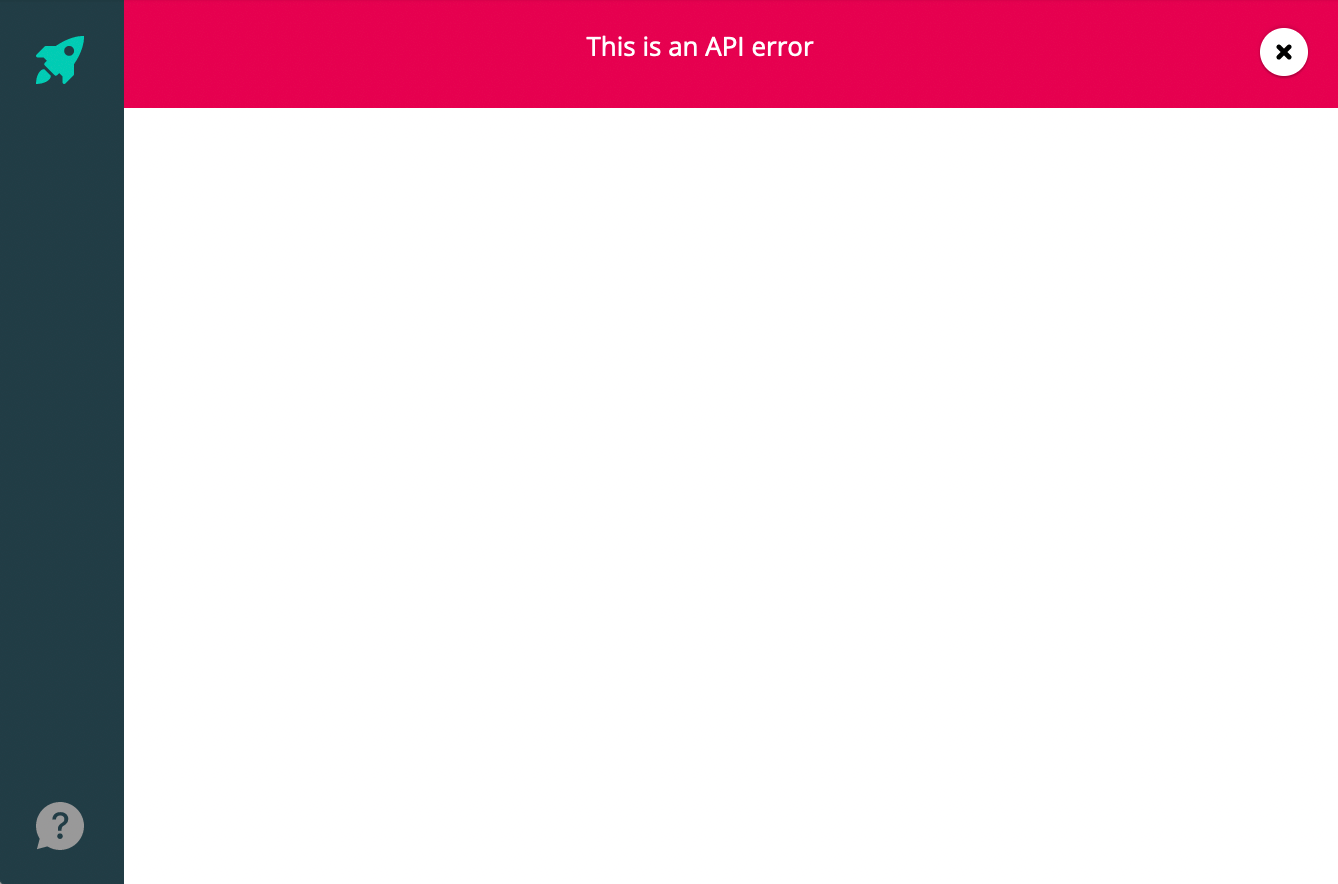
Page notifications are displayed on top of a content page. By default, the notifications must be closed manually. We recommend that you only use page notifications in Custom Applications.
Generally, `error` notifications should be displayed in the `page` domain rather than the `side` domain.
For defining the `kind` of page notification, we recommend using the `NOTIFICATION_KINDS_PAGE` constant exposed from `@commercetools-frontend/constants`.
The available values defined by the constant are `error`, `warning`, `info`, `success`, `unexpected-error` and `api-error`.
### Side notifications
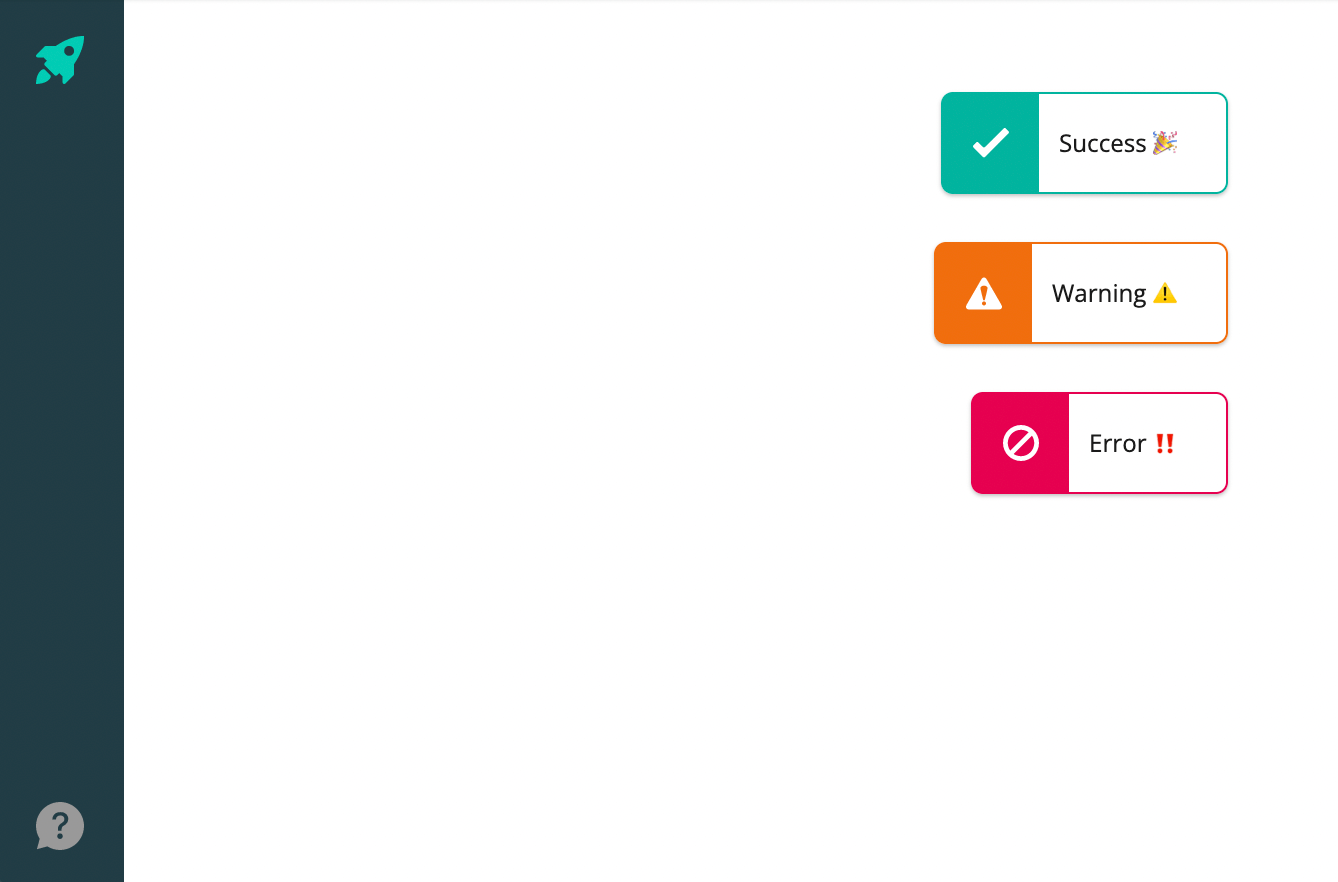
Side notifications are smaller than page notifications and they slide in from the right side of the page.
Success notifications in the `side` domain by default disappear after 5 seconds.
We recommend displaying `success` notifications in the `side` domain.
For defining the `kind` of side notification, we recommend using `NOTIFICATION_KINDS_SIDE` constant exposed from `@commercetools-frontend/constants`.
The available values defined by the constant are `error`, `warning`, `info` and `success`.
## Use notifications in a form
Let's implement notifications in the details page of our `Channels` application.
The following code example shows `useApplicationContext`, which is applicable to Custom Applications. If you're working with Custom Views, you'll need to use `useCustomViewContext` instead.
### Form submitted successfully
```js title="channels-details.js" highlightLines="6-7,23,29-33"
import { useCallback } from 'react';
import { useRouteMatch } from 'react-router-dom';
import { useApplicationContext } from '@commercetools-frontend/application-shell-connectors';
import { FormModalPage } from '@commercetools-frontend/application-components';
import LoadingSpinner from '@commercetools-uikit/loading-spinner';
import { useShowNotification } from '@commercetools-frontend/actions-global';
import {
DOMAINS,
NOTIFICATION_KINDS_SIDE,
} from '@commercetools-frontend/constants';
import useChannelsFetcher from './use-channels-fetcher';
import useChannelsUpdater from './use-channels-updater';
import { docToFormValues, formValuesToDoc } from './conversions';
import ChannelsForm from './channels-form';
const ChannelsDetails = (props) => {
const match = useRouteMatch();
const languages = useApplicationContext(
(context) => context.project.languages
);
const { data: channel } = useChannelsFetcher(match.params.id);
const { updateChannel } = useChannelsUpdater(match.params.id);
const showNotification = useShowNotification();
const handleSubmit = useCallback(
async (formValues) => {
const data = formValuesToDoc(formValues);
try {
await updateChannel(data);
showNotification({
kind: NOTIFICATION_KINDS_SIDE.success,
domain: DOMAINS.SIDE,
text: 'Channel updated! 🎉',
});
} catch (graphQLErrors) {
// show an error notification
}
},
[showNotification, updateChannel]
);
if (!channel) {
return ;
}
return (
{(formProps) => {
return (
{formProps.formElements}
);
}}
);
};
```
### Form submitted with errors
In most cases, displaying error notifications is the result of handling API errors. For example, when a form is rejected by the API. In this section, we will look at some examples of API error handling for GraphQL and REST API requests.
#### GraphQL
Find more information about GraphQL errors in the [Apollo Client docs](https://www.apollographql.com/docs/react/data/error-handling/).
The basic implementation of dispatching error notifications in the `Channels` application looks like this:
```js title="channels-details.js"
// ...
import { useShowApiErrorNotification } from '@commercetools-frontend/actions-global';
const ChannelsDetails = (props) => {
// ...
const showApiErrorNotification = useShowApiErrorNotification();
const handleSubmit = useCallback(
async (formValues) => {
const data = formValuesToDoc(formValues);
try {
// ...
} catch (graphQLErrors) {
const errors = Array.isArray(graphQLErrors)
? graphQLErrors
: [graphQLErrors];
if (errors.length > 0)
showApiErrorNotification({
errors,
});
}
},
[showApiErrorNotification /* ... */]
);
// ...
};
```
Following our recommendations, not all GraphQL errors should lead to dispatching an error notification.
For example, instead of displaying an error notification, we can try to map specific errors to their related form fields.
In the following code snippet, we take advantage of the fact that a Channel's `key` value [must be unique](/api/projects/channels.md#channel).
A request to update the Channel's `key` to a duplicated value results in an error with the `DuplicateField` error code.
Find more information about API errors on the [API errors page](/api/errors.md).
For this purpose, we recommend creating an error transforming function:
```js title="transform-errors.js"
import omitEmpty from 'omit-empty-es';
const DUPLICATE_FIELD_ERROR_CODE = 'DuplicateField'; // A particular error code returned by API that we wish to map to form field validation error
export const transformErrors = (graphQlErrors) => {
const errorsToMap = Array.isArray(graphQlErrors)
? graphQlErrors
: [graphQlErrors];
const { formErrors, unmappedErrors } = errorsToMap.reduce(
(transformedErrors, graphQlError) => {
const errorCode = graphQlError?.extensions?.code ?? graphQlError.code;
const fieldName = graphQlError?.extensions?.field ?? graphQlError.field;
if (errorCode === DUPLICATE_FIELD_ERROR_CODE) {
transformedErrors.formErrors[fieldName] = { duplicate: true };
} else {
transformedErrors.unmappedErrors.push(graphQlError);
}
return transformedErrors;
},
{
formErrors: {}, // will be mapped to form field error messages
unmappedErrors: [], // will result in dispatching `showApiErrorNotification`
}
);
return {
formErrors: omitEmpty(formErrors),
unmappedErrors,
};
};
```
In the form `onSubmit` handler, we can then transform the errors, render them in the form (if needed) and dispatch an error notification.
```js title="channels-details.js" highlightLines="2,7,12-18"
// ...
import { transformErrors } from './transform-errors';
const ChannelsDetails = (props) => {
// ...
const handleSubmit = useCallback(
async (formValues, formikHelpers) => {
const data = formValuesToDoc(formValues);
try {
// ...
} catch (graphQLErrors) {
const transformedErrors = transformErrors(graphQLErrors);
if (transformedErrors.unmappedErrors.length > 0)
showApiErrorNotification({
errors: transformedErrors.unmappedErrors,
});
formikHelpers.setErrors(transformedErrors.formErrors);
}
},
[
/* ... */
]
);
// ...
};
```
`DuplicateField` errors related to the `key` field will be transformed to form validation errors. All other errors are transformed into API error notifications.
#### REST
For HTTP requests sent to REST API, we follow the same pattern used in [GraphQL](/merchant-center-customizations/development/notifications.md#graphql):
```js title="channels-details-rest.js" highlightLines="4-8,12-13,28-32,35"
import { useEffect } from "react";
import { useAsyncDispatch, actions } from "@commercetools-frontend/sdk";
import { MC_API_PROXY_TARGETS } from "@commercetools-frontend/constants";
import {
useShowNotification,
useShowApiErrorNotification,
} from "@commercetools-frontend/actions-global";
import { DOMAINS, NOTIFICATION_KINDS_SIDE } from "@commercetools-frontend/constants";
const ChannelsDetails = (props) => {
const dispatch = useAsyncDispatch();
const showNotification = useShowNotification();
const showApiErrorNotification = useShowApiErrorNotification();
useEffect(() => {
async function execute() {
try {
const result = await dispatch(
actions.post({
mcApiProxyTarget: MC_API_PROXY_TARGETS.COMMERCETOOLS_PLATFORM,
service: "channels",
options: { /* ... */ },
payload: {
// ...
},
})
);
// Update state with `result`
showNotification({
kind: NOTIFICATION_KINDS_SIDE.success,
domain: DOMAINS.SIDE,
text: "Channel updated! 🎉",
});
} catch (error) {
// Update state with `error`
showApiErrorNotification({ errors: error.body?.errors ?? [] });
}
}
execute();
}, [dispatch]);
return (
// ...
);
};
```
## Usage with React class components
If a notification must be dispatched from a React class component, we cannot use React hooks exposed from the `@commercetools-frontend/actions-global` package.
Instead, we should use a Redux action directly.
The following is a basic example of dispatching notifications:
```jsx title="channel-updater.js" highlightLines="2-6,14-20,26-30,40"
import { Component } from 'react';
import { connect } from 'react-redux';
import {
showNotification,
showApiErrorNotification,
} from '@commercetools-frontend/actions-global';
import { DOMAINS, NOTIFICATION_KINDS_SIDE } from '@commercetools-frontend/constants';
// ...
class ChannelsDetails extends Component {
handleSubmit = (update) => async (formikValues) => {
try {
await update(formikValues);
this.props.dispatch(
showNotification({
kind: NOTIFICATION_KINDS_SIDE.success,
domain: DOMAINS.SIDE,
text: 'Channel updated! 🎉',
})
);
} catch (graphQLErrors) {
const errors = Array.isArray(graphQLErrors)
? graphQLErrors
: [graphQLErrors];
if (errors.length > 0) {
this.props.dispatch(
showApiErrorNotification({
errors,
})
);
}
}
};
render() {
return (
// ...
);
}
}
export default connect()(ChannelsDetails);
```
## Testing
When testing notifications, we recommend that you use the test render function for your specific customization type:
- For Custom Applications: use [`renderAppWithRedux`](/merchant-center-customizations/tooling-and-configuration/commercetools-frontend-application-shell.md#renderappwithredux)
- For Custom Views: use [`renderCustomView`](/merchant-center-customizations/tooling-and-configuration/commercetools-frontend-application-shell.md#rendercustomview)
## Related pages
- [Area overview page with navigation](/merchant-center-customizations.md)
- [Previous page: Page content layouts](/merchant-center-customizations/development/page-content-layouts.md)
- [Next page: Testing](/merchant-center-customizations/development/testing.md)