Note: replace hardcoded IDs (such as Inventory entry IDs, Customer IDs, and Cart IDs) with your actual values when you test or implement these examples. Retrieve the necessary IDs by using the relevant API endpoints or searching for entries that match your data.
Configurable price rounding modes for Carts
We have covered new ways to discount prices. Now, let’s talk about how we calculate the final penny.
€10.50 and the ERP said €10.51.With the June 2025 release, you can now align your rounding logic perfectly with your backend systems.
roundingMode field is now available for Cart, CartDraft, Order, OrderImportDraft, Quote, and QuoteRequest resources, as well as a Project setting. This feature allows you to precisely define how line item totals, tax calculations, and discount applications are rounded, ensuring consistency with your accounting department's requirements.The supported modes are:
HalfEven: the classic commercetools behavior (default).HalfUp: rounds towards "nearest neighbor" unless both neighbors are equidistant, in which case round up.HalfDown: rounds towards "nearest neighbor" unless both neighbors are equidistant, in which case round down.
priceRoundingMode to HalfUp:curl -X 'POST' \
'https://api.{region}.commercetools.com/{projectKey}/carts' \
-H 'Content-Type: application/json' \
-H 'Authorization: Bearer {bearerToken}' \
-d '{
"currency": "EUR",
"country": "DE",
"lineItems": [
{
"sku": "EC-0993"
},
{
"sku": "WOP-09"
},
{
"sku": "WTP-09"
},
{
"sku": "BUCK-023"
}
]
,
"priceRoundingMode" : "HalfUp"
}
' | jq
...
 "cartState": "Active",
  "totalPrice": {
    "type": "centPrecision",
    "currencyCode": "EUR",
    "centAmount": 1576,
    "fractionDigits": 2
  },
...
  "priceRoundingMode": "HalfUp",
...
}
We can see that the Cart’s total price is now €15.76, just like the other two carts.
HalfEven, HalfUp, or HalfDown—is paramount for financial integrity. Functional Architects must ensure the priceRoundingMode is aligned at the Project or Cart level to prevent reconciliation mismatches with downstream ERP and accounting systems. This alignment is key to eliminating costly discrepancies, ensuring compliance, and maintaining a trustworthy commerce solution.Quantity limits for Line Items
In B2B scenarios (and high-demand B2C drops), allowing users to add unlimited quantities of a single product to a cart is often risky. You might want to prevent:
- Hoarding: a bot buying your entire stock of limited-edition sneakers.
- Logistics nightmares: a customer accidentally ordering 500 pallets of bricks instead of 500 bricks.
- Minimum viable orders: ensuring wholesale customers buy at least a "case" (for example, minimum 12 units).
Before July 2025, enforcing these limits required custom API extensions or frontend validation (which could be bypassed). Now, it’s a native feature of the Cart API.
addLineItem or changeLineItemQuantity request. This added latency and maintenance overhead.If you relied only on the frontend to hide the "plus" button, savvy users could still hit the API directly and drain your inventory.
To quickly test this, let's update the default inventory entry for the Sweet Pea Candle. We want to set the minimum purchase quantity at 5 and the maximum at 50 per order.
curl  -X 'POST' \
  'https://api.{region}.commercetools.com/{projectKey}/inventory/f3119cbb-9742-419a-9324-5f969b33c943' \
  -H 'Content-Type: application/json' \
  -H 'Authorization: Bearer {bearerToken}' \
  -d '{
  "version": 1,
  "actions": [
    {
      "action": "setInventoryLimits",
      "minCartQuantity": 5,
      "maxCartQuantity": 50
    }
  ]
}' |jq
Once successful, let’s create a new cart with just one Sweet Pea candle in it:
curl  -X 'POST' \
  'https://api.{region}.commercetools.com/{projectKey}/carts' \
  -H 'Content-Type: application/json' \
  -H 'Authorization: Bearer {bearerToken}' \
  -d '{
    "currency": "EUR",
    "country": "DE",
    "lineItems": [
      {
        "sku": "SPC-01"
      }
    ]
  }
' | jq
{
  "statusCode": 400,
  "message": "Quantity '1' less than minimum '5'.",
  "errors": [
    {
      "code": "LineItemQuantityBelowLimit",
      "message": "Quantity '1' less than minimum '5'.",
      "quantity": 1,
      "minCartQuantity": 5
    }
  ]
}
We were prevented from adding fewer candles than the previously established minimum limit.
Introducing or changing quantity limits can impact existing Line Items in Carts. The next time a Cart is updated after a limit change, any Line Item quantity that is now too high or too low will be removed. If a Cart update tries to change a Line Item's quantity or supply channel and that change would violate the new limits, the platform will reject the entire update request.
Cart merging for externally authenticated Customers
We've all been there: a customer shops on their phone as a "Guest", adds three items to their cart, and then decides to log in. Suddenly, the items disappear, or worse, they overwrite the items they had saved in their account from last week.
This "Cart Merging" friction is a classic commerce headache.
Previously, the automatic "Merge Cart" logic was tightly coupled with the commercetools native password flow.
/login endpoint (native auth), you could pass an anonymousCartId, and the platform would magically merge it with the customer's existing cart.Imagine that a customer has created a Cart with a Line Item in it:
curl  -X 'POST' \
  'https://api.{region}.commercetools.com/{projectKey}/carts' \
  -H 'Content-Type: application/json' \
  -H 'Authorization: Bearer {bearerToken}' \
  -d '{
  "customerId" : "abcd0a05-e532-4673-9bd9-dd8e9545c24a",
    "currency": "EUR",
    "country": "DE",
    "lineItems": [
      {
        "sku": "WOP-09"
      }
    ]
  }
' | jq
3f626126-2fb4-4c2d-b1af-c6df2d24a7a1”.
They did not check out their cart and logged out from the store.
Some time later they created a new anonymous Cart:curl -X 'POST' \
'https://api.{region}.commercetools.com/{projectKey}/carts' \
-H 'Content-Type: application/json' \
-H 'Authorization: Bearer {bearerToken}' \
-d '{
"currency": "EUR",
"country": "DE",
"lineItems": [
{
"sku": "WTP-09"
}
]
}
' | jq
31ce7a11-1455-4db0-b5a8-31d6b04a8bf7”.Now that customer logs in using an external authentication method you can now explicitly tell the API: "Take this anonymous Cart and merge it into this Customer's active Cart."
curl  -X 'POST' \
  'https://api.{region}.commercetools.com/{projectKey}/carts/customer-id=abcd0a05-e532-4673-9bd9-dd8e9545c24a/merge' \
  -H 'Content-Type: application/json' \
  -H 'Authorization: Bearer {bearerToken}' \
  -d '{
  "anonymousCart" : {
    "typeId" : "cart",
    "id" : "31ce7a11-1455-4db0-b5a8-31d6b04a8bf7"
  },
  "mergeMode" : "MergeWithExistingCustomerCart",
  "updateProductData" : false
}'
customerId to retrieve the customer's active Cart and a reference to the anonymous Cart. You also have the option to specify which of the supported Cart merging strategies should be utilized. Furthermore, you can decide whether a full update of product data is necessary. If a full update is not chosen (set to false), only the prices, discounts, and tax rates will be updated.MergeWithExistingCustomerCart" strategy, the outcome is the updated customer Cart, which now includes items from both original carts.{
"type": "Cart",
"id": "3f626126-2fb4-4c2d-b1af-c6df2d24a7a1",
...
},
"customerId": "abcd0a05-e532-4673-9bd9-dd8e9545c24a",
"lineItems": [
{
...
"productKey": "sweet-pea-candle",
...
},
{
...
"productKey": "evergreen-candle",
...
"totalLineItemQuantity": 2
}
Recurring Orders
If you’ve been looking for a way to lock in customer loyalty and automate revenue streams without building complex custom engines, 2025 has been your year.
In this section, we will walk through how to set up the "rhythm" of a subscription, manage the lifecycle of an order, and handle the inevitable bumps in the road using the latest API capabilities.
To demonstrate this, we will set up a daily subscription for a product within our project. Choosing a daily frequency will allow you to see the results of the configuration most quickly.


Remember to publish the product after creating the price.
Now that we have a “recurring price” configured we can create a Cart with a Line Item that uses it. This part can currently only be done via the API:
curl  -X 'POST' \
  'https://api.{region}.commercetools.com/{projectKey}/carts' \
  -H 'Content-Type: application/json' \
  -H 'Authorization: Bearer {bearerToken}' \
  -d '{
  "currency": "EUR",
  "customerId": "abcd0a05-e532-4673-9bd9-dd8e9545c24a",
  "customerEmail": "jen@example.de",
  "shippingAddress" : {"country" : "DE"},
  "country": "DE",
  "lineItems": [
    {
      "sku": "VC-01",
      "recurrenceInfo": {
        "recurrencePolicy": {
          "typeId": "recurrence-policy",
          "key": "daily-payment"
        },
        "priceSelectionMode": "Fixed"
      }
    }
  ]
}
' | jq
{
  "type": "Cart",
  "id": "334f0c53-3914-4e8f-8c5a-ddcf770d46db",
  "version": 1,
...
  "lineItems": [
    {
      "id": "591d0db1-765c-4f3c-9caf-2c42cb361a10",
      "productId": "b7a01766-8dce-4b02-b4bc-7216e9032586",
      "productKey": "vanilla-candle",
...
      "price": {
        "id": "277d5f06-8e99-4858-bacc-e86c18278da2",
        "value": {
          "type": "centPrecision",
          "currencyCode": "EUR",
          "centAmount": 499,
          "fractionDigits": 2
        },
        "key": "recurrence-price",
        "country": "DE",
        "recurrencePolicy": {
          "typeId": "recurrence-policy",
          "id": "352e2fc6-e969-4654-8f28-57ae8eff05ff"
        }
      },
      "quantity": 1,
...
  "totalLineItemQuantity": 1
}
The newly created Cart should have one Line Item with a recurring price.
priceSelectionMode. Setting it to Fixed ensures that all recurring orders generated from the Cart retain the initial Line Item price (EUR 4.99, as shown in the API response with "centAmount": 499), irrespective of any price changes during the subscription. Alternatively, Dynamic can be chosen, which will result in each recurring order using the Line Item's current price at the time each recurring order instance is created (not just the initial order).To prove that the above statement is correct, let’s create a recurring order from our newly created Cart using the Orders API:
curl  -X 'POST' \
  'https://api.{region}.commercetools.com/{projectKey}/orders' \
  -H 'Content-Type: application/json' \
  -H 'Authorization: Bearer {bearerToken}' \
  -d '{
  "cart" : {
    "id" : "334f0c53-3914-4e8f-8c5a-ddcf770d46db",
    "typeId" : "cart"
  },
  "version" : 1
}' | jq
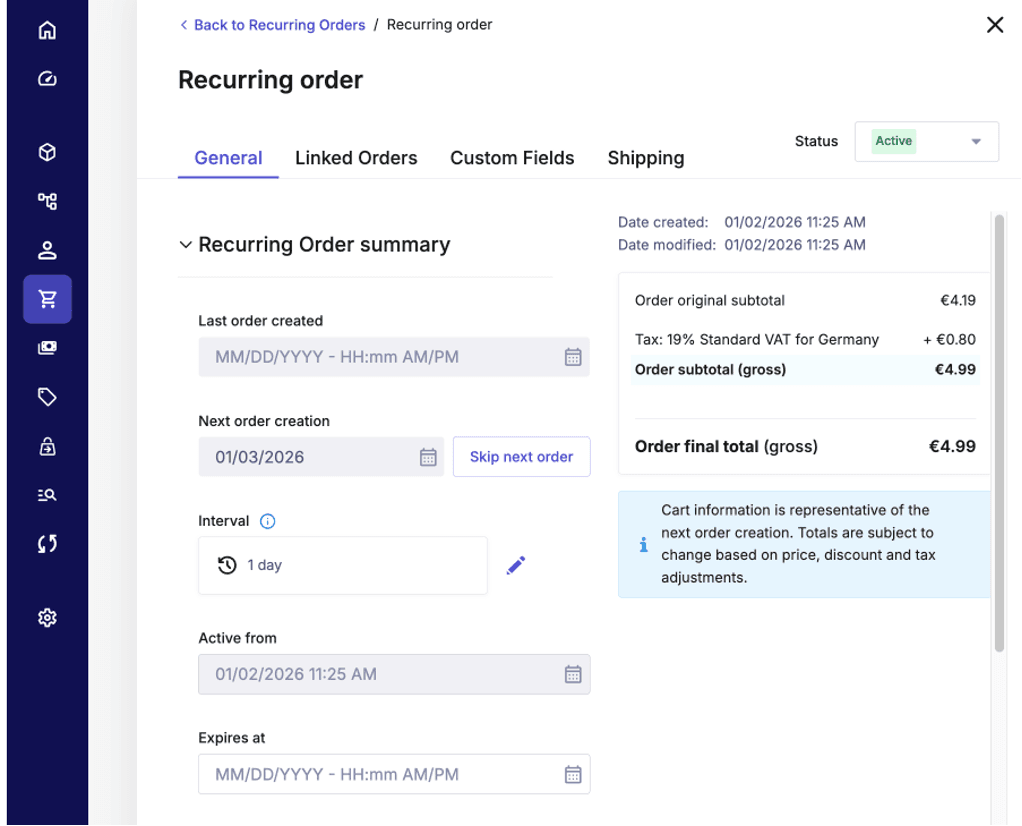
priceSelectionMode: set it to Fixed (locks the initial price) or Dynamic (uses the current price at each renewal) via the Line Item's recurrenceInfo.