commercetools Frontend Studio lets you create new pages, update existing pages, and update the website layout. As an example, you will learn to create a new layout for your home page to advertise a promotional offer. You can apply the concepts shared in this chapter to all pages of your website.
To carry out the tasks described here, you should be familiar with the Site builder area in the Studio by following our Studio documentation.
We recommend duplicating an existing page version and adjusting its layout, such as the hero banner and product slider. We'll guide you through the steps for both the B2C Retail and B2B Manufacturing guides.
Finally, you will learn how to publish the new page version. This is common for both guides.
B2C Retail
Duplicate the existing page version
Duplicating the existing page version is the easiest way to create a new page with a slightly changed layout. To do so, go to the Site builder and duplicate the Home > Live > Default page version using the More icon.

Give this new page version a meaningful name, such as Seasonal Promotion. After saving the new page version, the page builder will open, where you can edit the page version's layout.
Edit the new page version layout
To advertise a seasonal promotion, update the hero banner image and message and replace the product slider contents.
Edit the hero banner
From the HEAD layout section, select the commercetools UI hero Frontend component. To edit the image, expand the Image section and replace the current image with the promotional image.
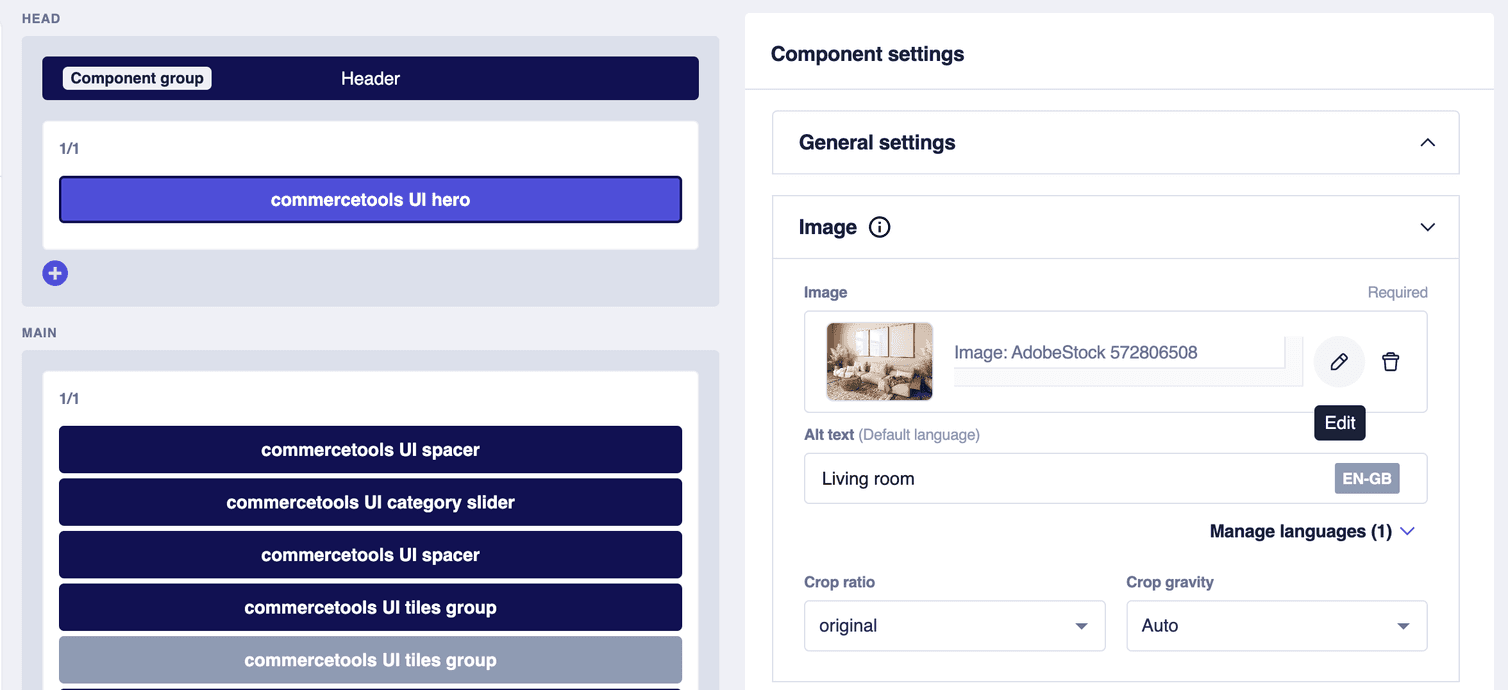
Now, expand the Message section to change the message displayed on the banner. Enter the text you want. For example, SEASONAL SALE in the Title field and SAVE 10% ON SELECTED PIECES in the Subtitle field.
You can edit the text for the other locales configured in your project by clicking Manage languages.
Finally, edit the Call to action section. Enter the button label and link. For example, To the sale in the Button label field and
/home-decor (the Home Decor category slug) in the Link field.Edit the product slider
From the MAIN layout section, select the commercetools UI product slider Frontend component to open the Components settings pane.
In the Configuration section, enter On sale in the Title field. In the Subline field, enter a short description such as Explore our products on sale.

To filter the products with the promotional offer, you must add a data source filter. In the products field, you will find a reference to the Product list data source filter.

Add a new data source filter with the name Featured home decor articles and a Product SKUs filter with a comma-separated list of SKUs. Enter the SKUs of the products you want to display in the slider. You can find these on the Merchant Center.

B2B Manufacturing
Duplicate the existing page version
Duplicating the existing page version is the easiest way to create a new page with a slightly changed layout. To do so, go to the Site builder and duplicate the Homepage > Live > V1 page version using the More icon.

Give this new page version a meaningful name, such as Seasonal Promotion. After saving the new page version, the page builder will open, where you can edit the page version's layout.
Edit the new page version layout
To advertise a seasonal promotion, update the hero banner image and message and replace the product slider contents.
Edit the hero banner
From the MAIN layout section, select one of the Hero Tile Frontend components. To edit the image, expand the Image section and replace the current image with the promotional image. Perform the same changes for the other Hero Tile component, to have the same banner on mobile or other devices and desktop.
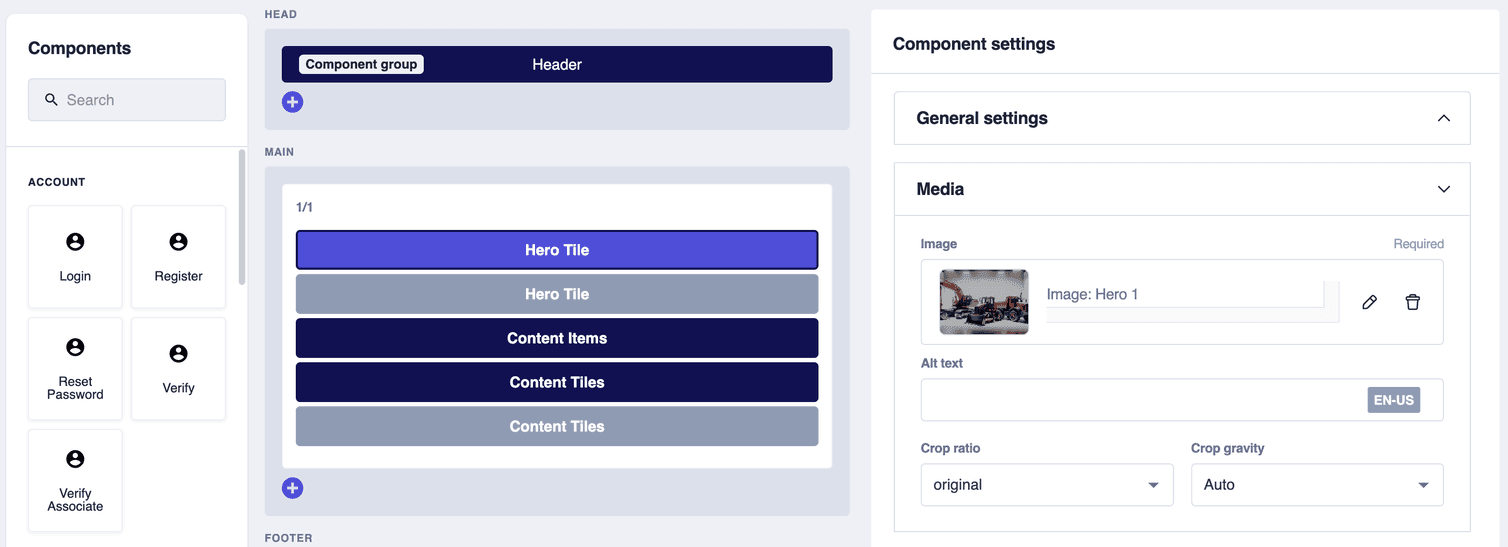
Now, expand the Content section to add a link to the banner. Enter the text you want to display in the banner. For example, Sale on excavators in the Name field and
/excavators (the excavators product category slug) in the Link fieldAdd a product slider
Drag the Product Slider component from Components > PRODUCTS to the MAIN section, and open the Components settings pane.
In the Content section, enter On sale in the Headline field.

To filter the products with the promotional offer, you must add a data source filter. In the Products field, you will find a reference to the Product list data source filter.
Add a new data source filter with the name Excavators and a Category filter for the excavators category.

Publish the new page version
Now that you've applied all the changes to the page version, it's time to preview it. If the preview looks as expected, go back to the page builder and save the page version.
After saving, the page version will still be a draft. You can publish the page version right away or schedule the page version to go live later. In this example, you would want to schedule the page version to only appear during the promotional sale. To do so, select the Seasonal Promotion page version and schedule it using the More icon. For further information on scheduling, see Scheduling page versions.